WooCommerce
How to edit WooCommerce settings, as well as add, edit, and delete products.
1. Products on this site are managed with the WooCommerce plugin.
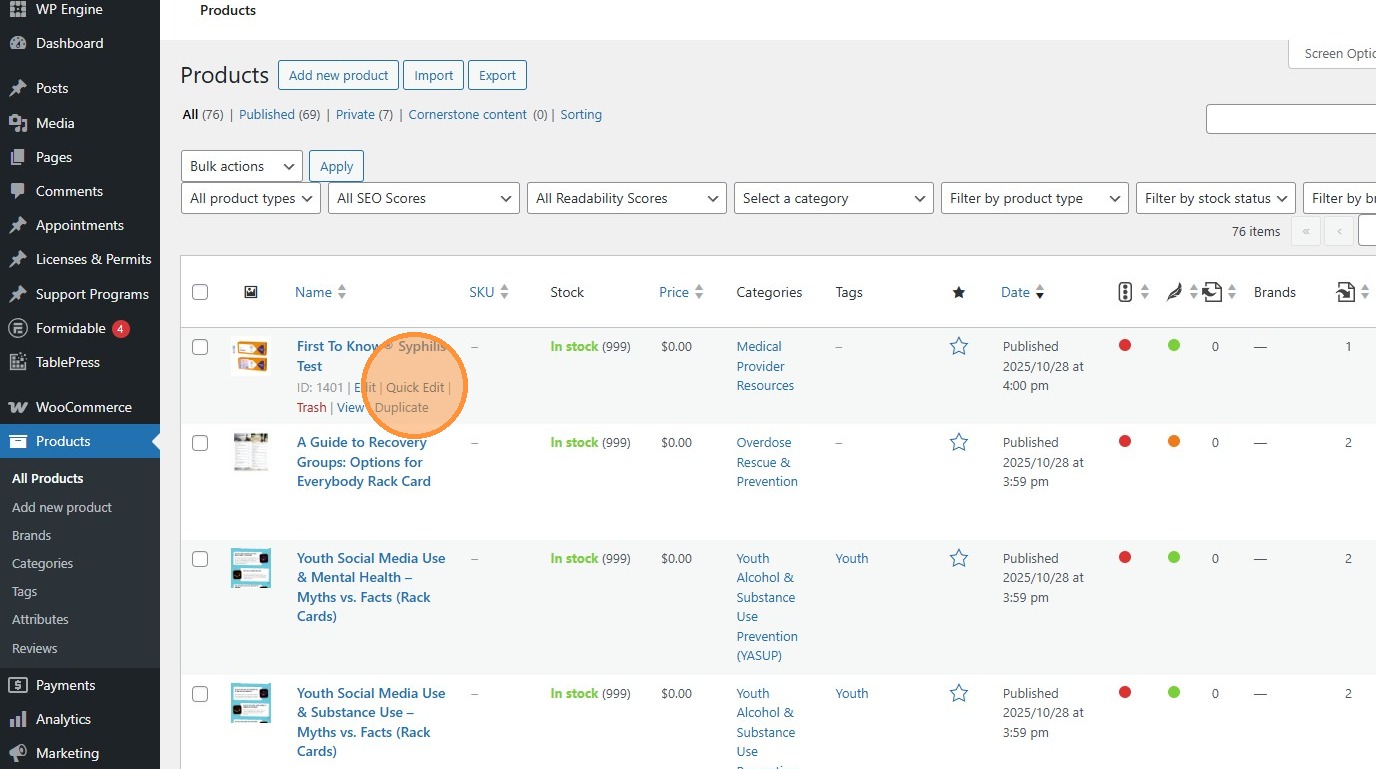
Section titled “1. Products on this site are managed with the WooCommerce plugin.”In order to manage products, navigate to the Products tab, just below the WooCommerce tab in Wordpress.
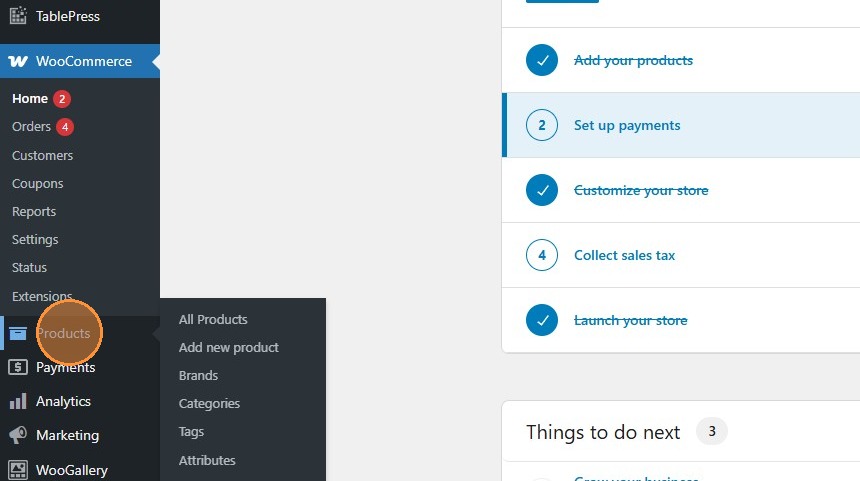
2. Click “Add new product” to, well, add a new product.
Section titled “2. Click “Add new product” to, well, add a new product.”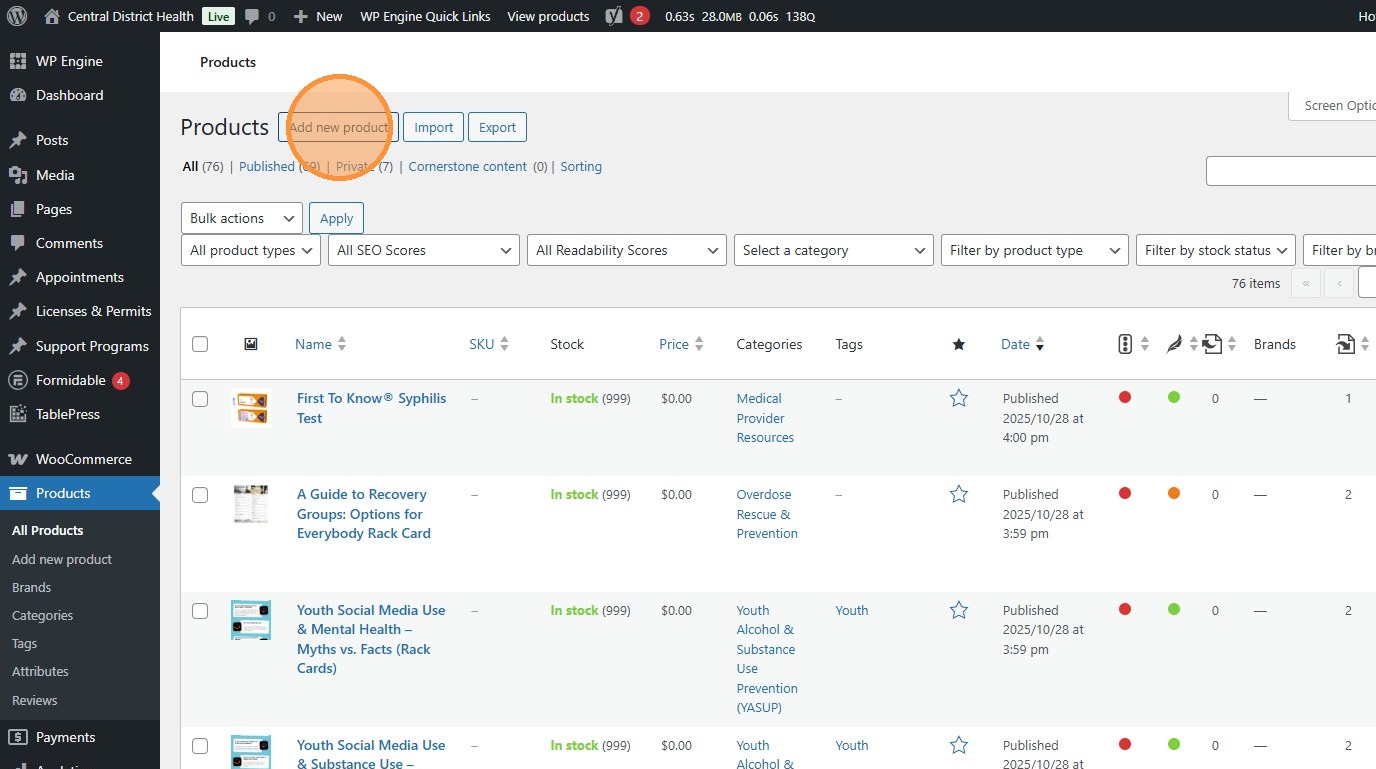
3. Click “Edit” to edit all of a product’s attributes, including those found under Quick Edit.
Section titled “3. Click “Edit” to edit all of a product’s attributes, including those found under Quick Edit.”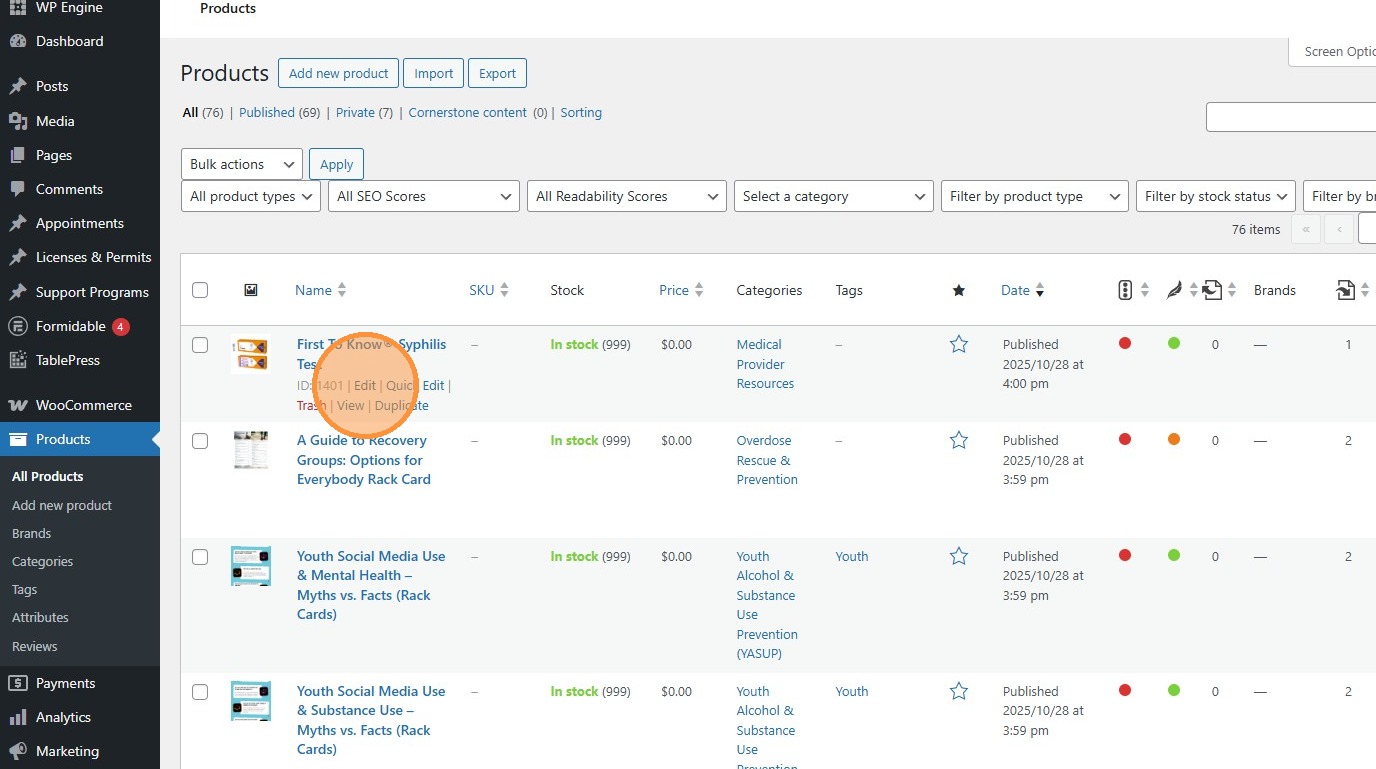
4. Use this text box to edit the product description. This will appear on the shop.
Section titled “4. Use this text box to edit the product description. This will appear on the shop.”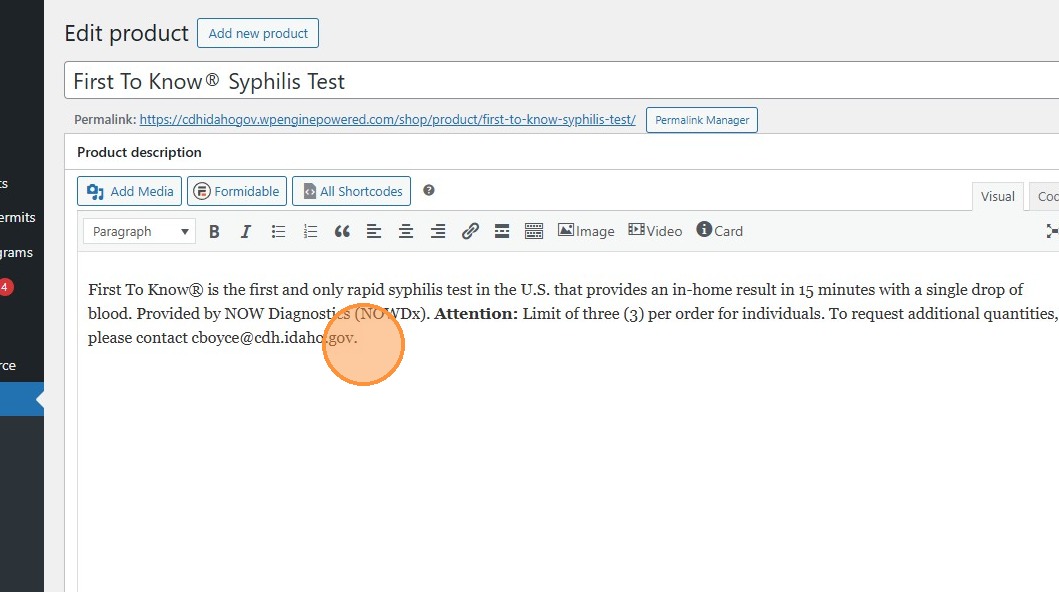
5. Click this image to edit the product’s image. This will also appear on the shop.
Section titled “5. Click this image to edit the product’s image. This will also appear on the shop.”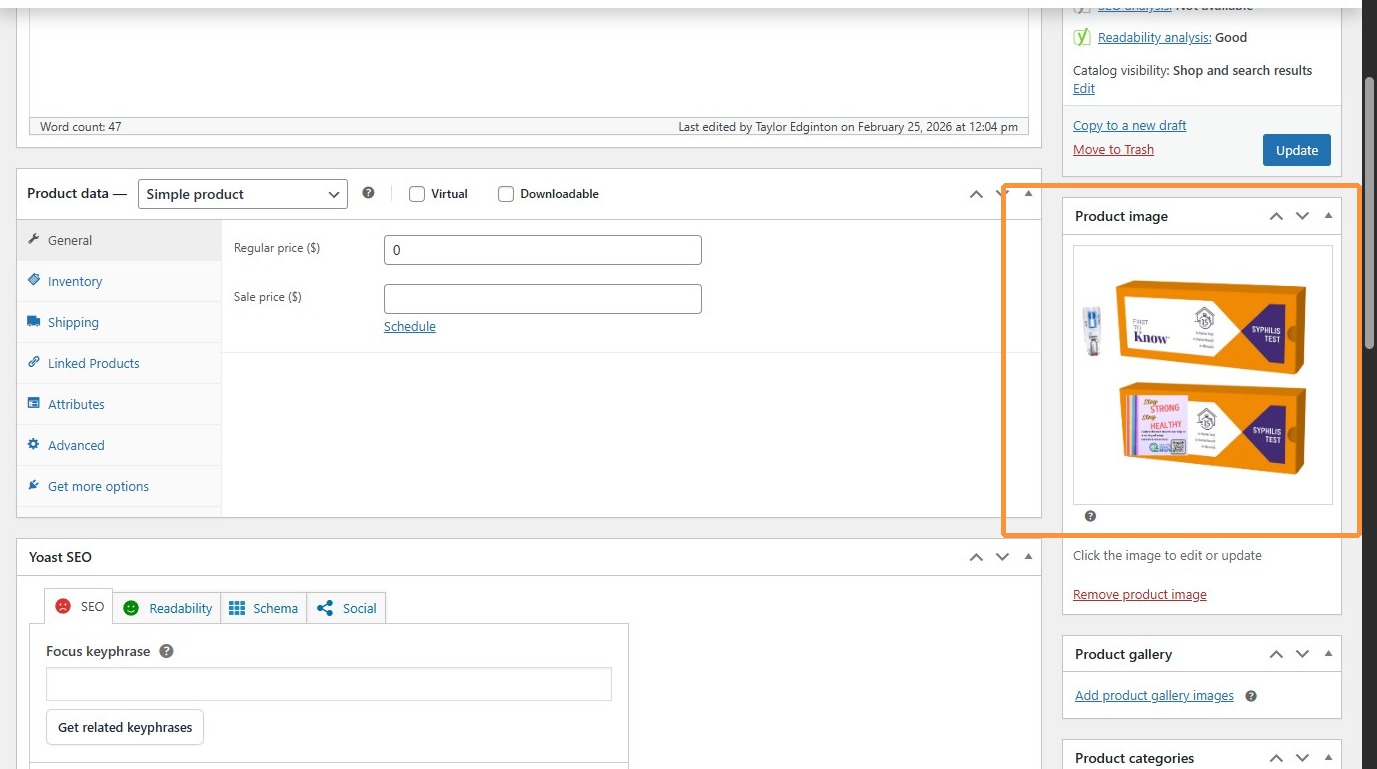
6. Click “Inventory” to show some often-useful attributes. More info on this tab from WooCommerce.
Section titled “6. Click “Inventory” to show some often-useful attributes. More info on this tab from WooCommerce.”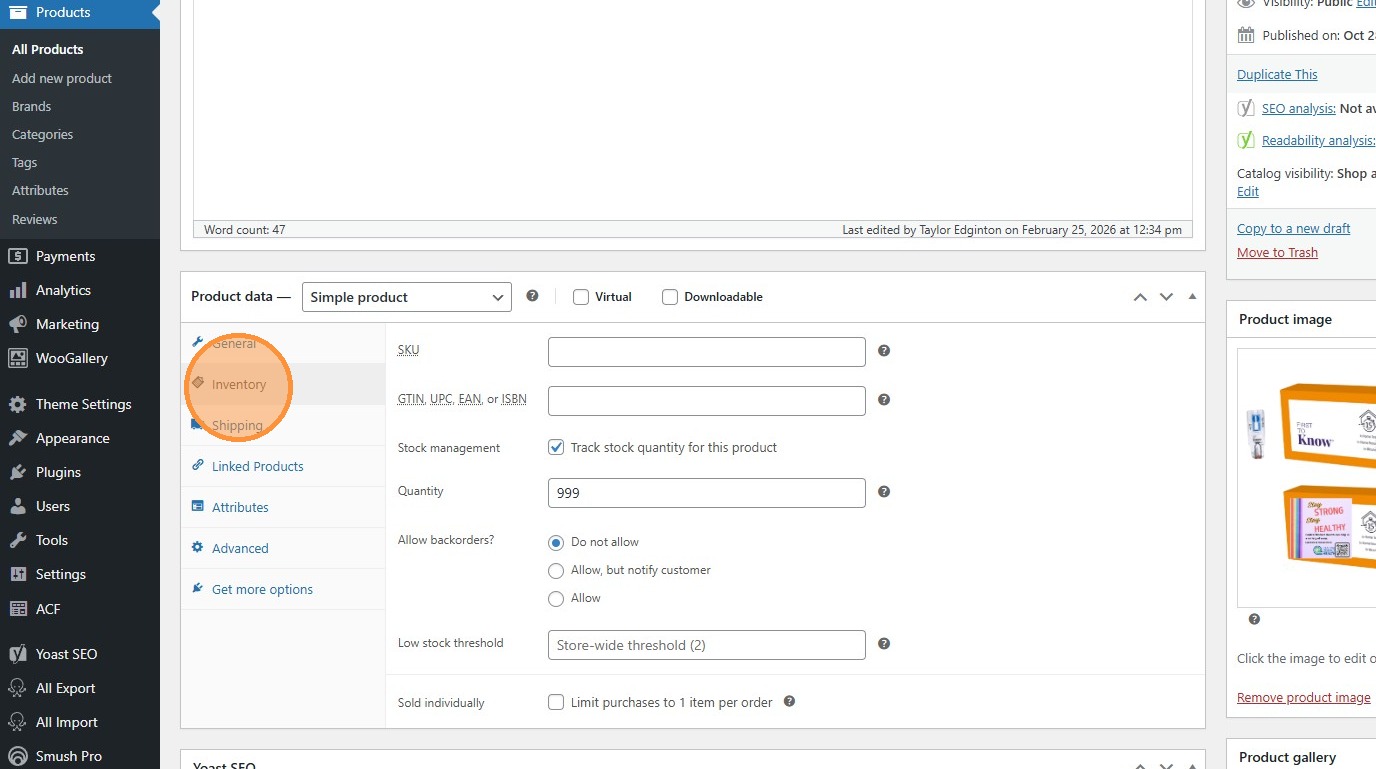
7. The Inventory tab allows you to change the marked quantity of each product in the store.
Section titled “7. The Inventory tab allows you to change the marked quantity of each product in the store.”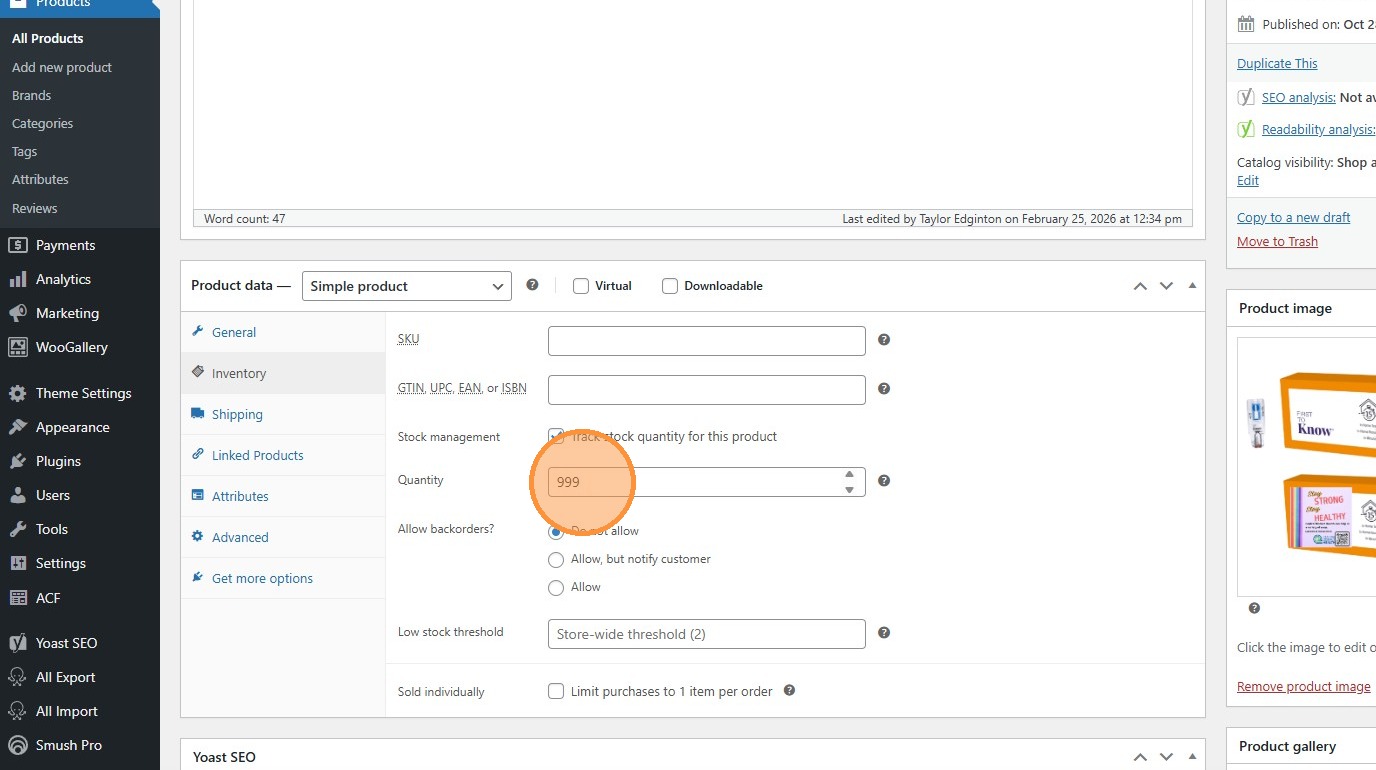
8. This field controls whether users can purchase a product while it is marked out-of-stock.
Section titled “8. This field controls whether users can purchase a product while it is marked out-of-stock.”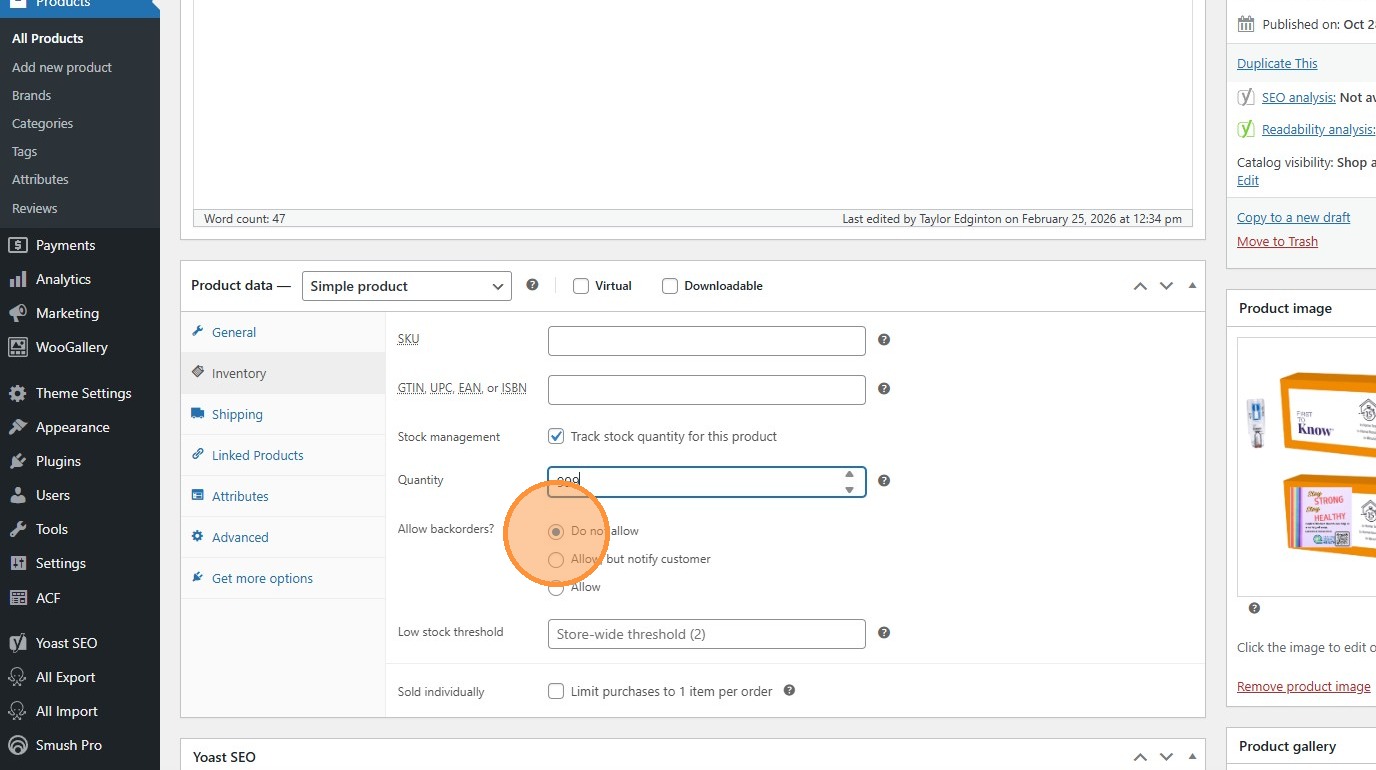
9. This field controls whether users are limited to 1 product per order.
Section titled “9. This field controls whether users are limited to 1 product per order.”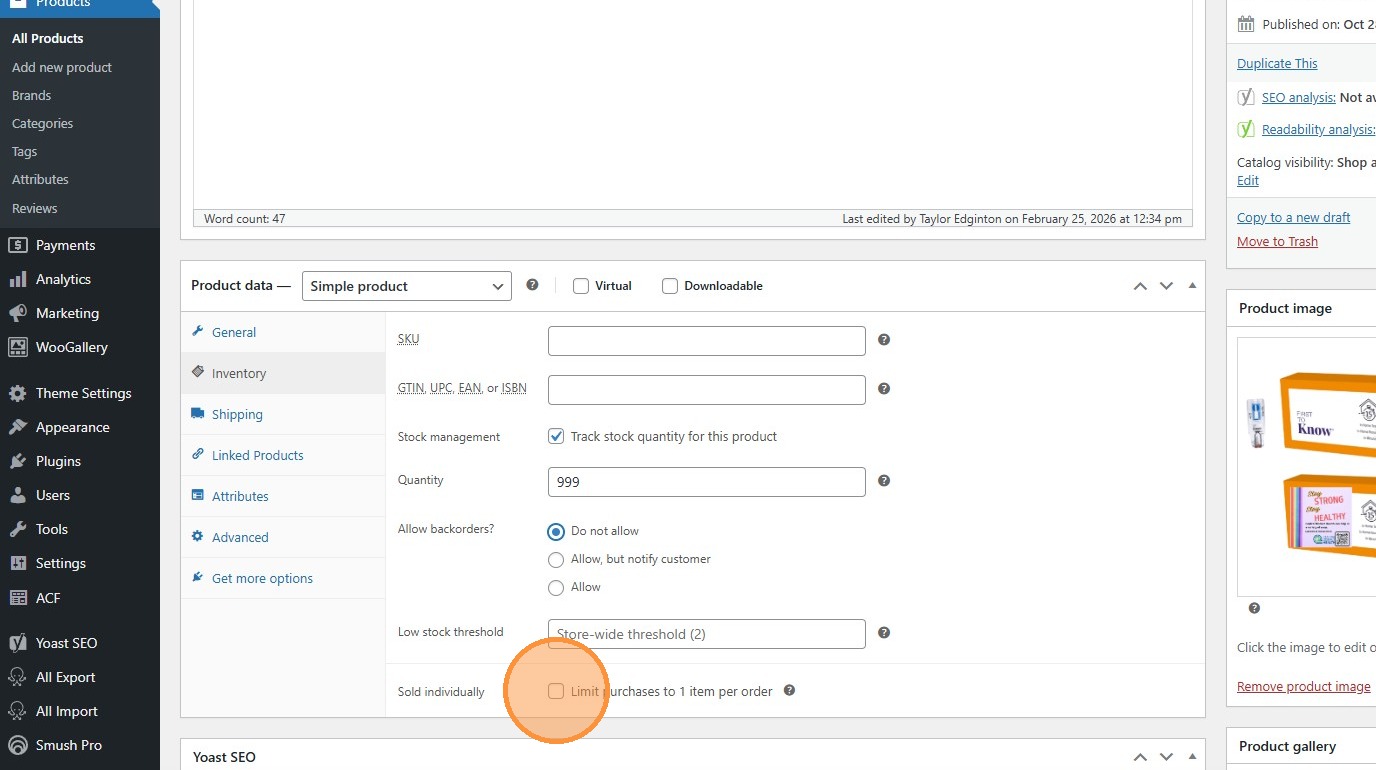
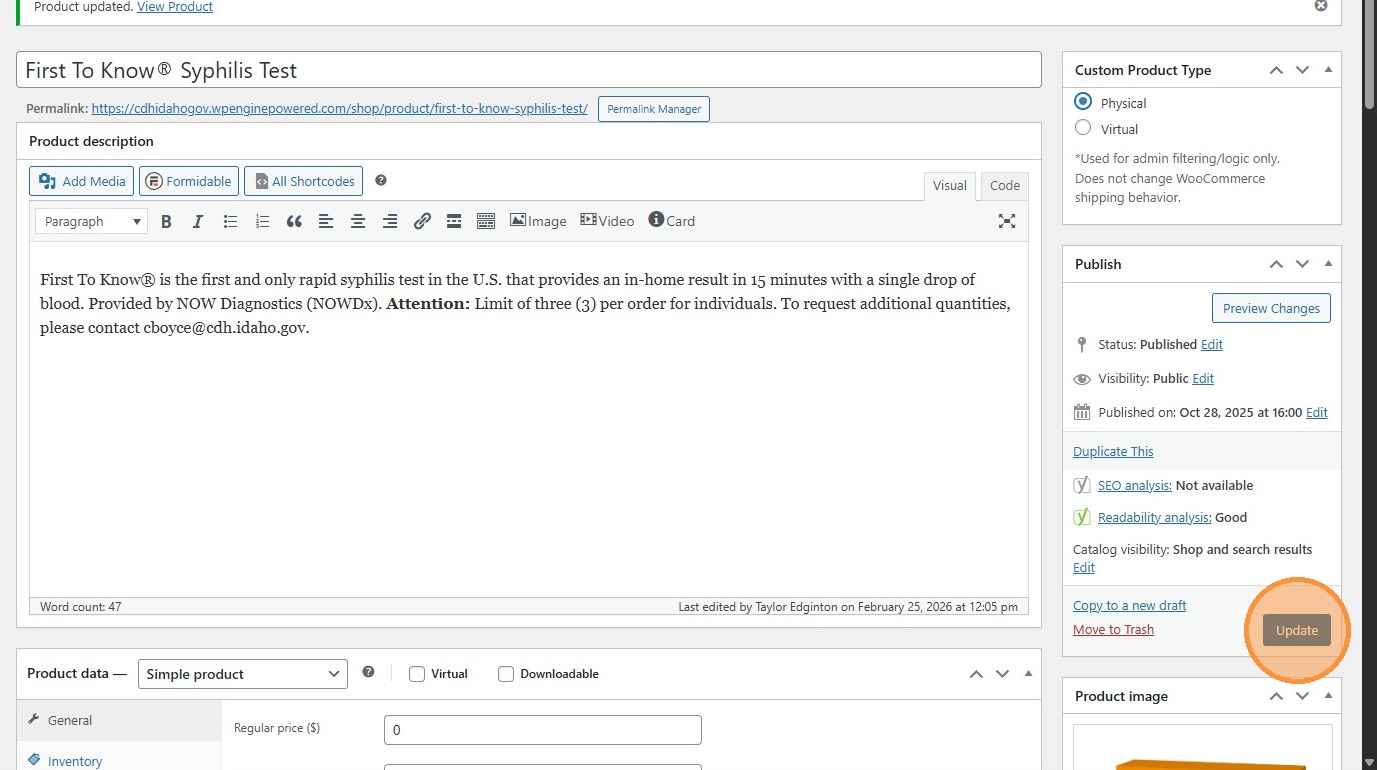
10. Click “Update” to publish changes to the live site.
Section titled “10. Click “Update” to publish changes to the live site.”Other information about editing WooCommerce products can be found here.
11. Click “Move to Trash” to delete the product.
Section titled “11. Click “Move to Trash” to delete the product.”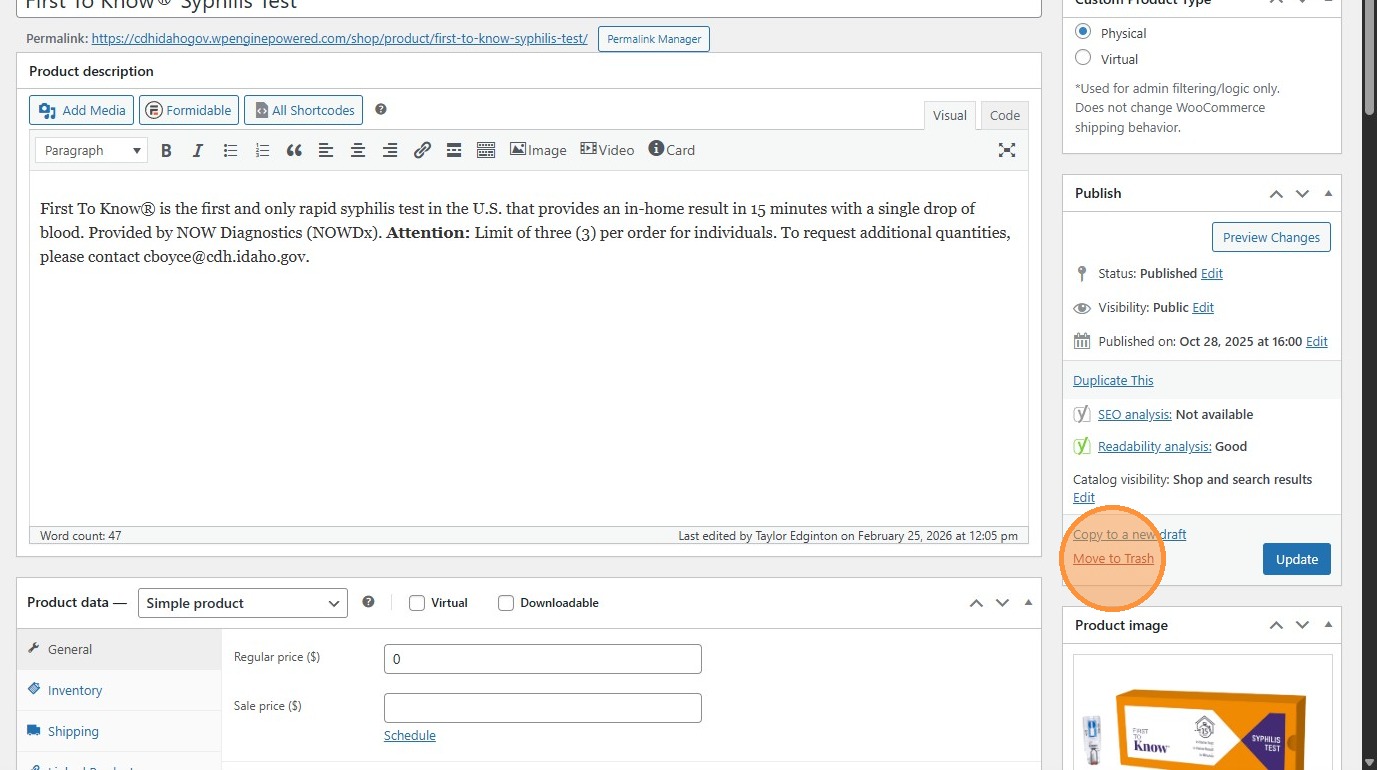
12. Several important attributes can be edited with the “Quick Edit” menu.
Section titled “12. Several important attributes can be edited with the “Quick Edit” menu.”If you need to edit many products in sequence, this can be useful to save time. Normally, we use the regular “Edit” menu.